Move SE Password Reset
How to Reset the Admin Password on a Camera
This guide will explain how to reset the admin password on a PTZOptics camera.
G3 Password Reset Methods & Notes
- Move 4K
- Move SE
- Link 4K
- Studio 4K
- Studio SE
See the SimplTrack3 section below for specific instructions!
The default credentials for G3 cameras are username admin, password admin. Cameras with newer firmware will require you to set a new password upon first login.
Method A: IR Remote Command (Recommended)
Before attempting to issue the IR remote command, make sure the correct IR channel (indicated by the CAMERA SELECT button) is selected and the camera is responding. You can test this by using the arrow buttons on the remote. The camera should respond to movement commands and the green standby light on the front should flash.
While aiming the remote at the camera, press the buttons *, #, MANUAL one at a time, and the camera should reboot. You can confirm the admin password has been reset by typing the camera's IP address into your browser's address bar and logging in with the default credentials of admin/admin.
On the latest firmware, the *, #, MANUAL command will reset the admin password and the camera's IP information. Depending on your network, the camera may default back to DHCP and get an IP address from your router, or it will revert to its fallback IP address of 192.168.100.88.
To display the camera's IP address on-screen, use the IR Remote command: Press *, then #, then 4. The IP address also briefly appears on-screen after the camera has been rebooted. You can use the IR remote command #, then *, then 4 to set the camera's network mode to DHCP.
Method A: IR Remote Command (SimplTrack3)
This password reset command will only work on SimplTrack3 cameras with firmware version 1.0.59 or later! If you're not sure what firmware version your camera is on, or you don't have the IR remote, please contact Support!
With the camera powered on, use the included IR remote to issue the password reset command: Call, 3, 1, 0, Enter.
On the SimplTrack3 remote, the Enter button is the right-angled arrow button located at the bottom right of the remote.
Method B: Upgrade Tool v2.9.79 (Advanced)
The latest version of the Upgrade Tool for Windows adds an admin password reset function to the Network Reset button in the Config tab seen below. This application can be downloaded from the PTZOptics Applications page.
If you are unable to use this version of the Upgrade Tool and you don't have the IR remote that comes with the camera, please contact Support!
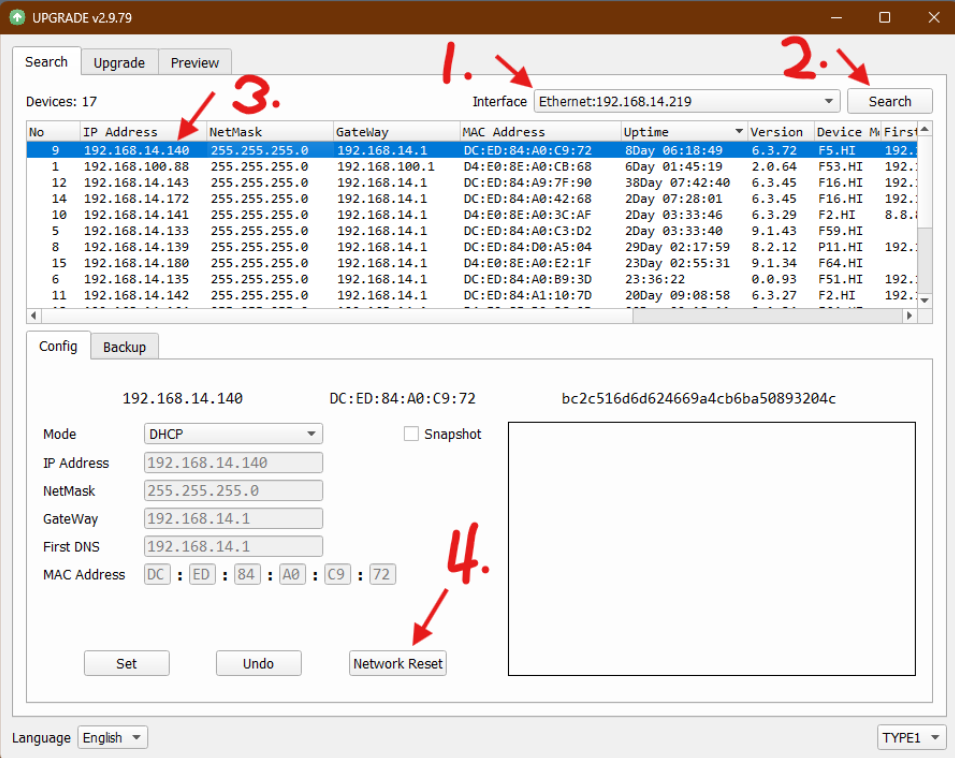
- Select your network interface from the dropdown menu.
- Click
Search. - Select your camera from the list. It's network connection details will populate the fields in the
Configtab. - Click the
Network Resetbutton. This will reset the camera's IP information and reset the admin password.
Wait a minute or two for the camera to reboot, then click the Search button again. Depending on your network, the camera may default back to DHCP and get an IP address from your router, or it will revert to its fallback IP address of 192.168.100.88. If it's using the fallback address, you won't be able to access the web interface of the camera. Select the camera from the Devices list again, change the Mode dropdown to DHCP and click Set. The camera should reboot again and appear with a valid IP address from your router.
If you're unable to find the camera on your network using the Upgrade Tool, please contact Support!
Method C: Factory Reset Button
Performing a factory reset will reset the admin password to the default admin and erase all other settings on the camera.
Move 4K & Link 4K
With the camera powered on, press and hold the RESTORE button on the back of the camera for 5 seconds.
Move SE
With the camera powered on, press and hold the REST button on the back of the camera for 5 seconds.
Studio SE & Studio 4K
With the camera powered on, press and hold the AF/Enter and Menu/Back buttons at the same time for 10 seconds.
G2 Password Reset Methods & Notes
- PT20X-SDI-XX-G2
- PT12X-USB-XX-G2
- PT12X-NDI-XX
- PT-STUDIOPRO
Note: “XX” stands for the color. Use “WH” for white and “GY” for gray.
The default credentials for G2 cameras are username admin, password admin.
Method A: IR Remote Command (Recommended)
Before attempting to issue the IR remote command, make sure the correct IR channel (indicated by the CAMERA SELECT button) is selected and the camera is responding. You can test this by using the arrow buttons on the remote. The camera should respond to movement commands and the green standby light on the front should flash.
This command is only available on G2 cameras with the latest firmware!
While aiming the remote at the camera, press the buttons *, #, MANUAL one at a time, and the camera should reboot. You can confirm the admin password has been reset by typing the camera's IP address into your browser's address bar and logging in with the default credentials of admin/admin.
On the latest firmware, the *, #, MANUAL command will reset the admin password and the camera's IP information. Depending on your network, the camera may default back to DHCP and get an IP address from your router, or it will revert to its fallback IP address of 192.168.100.88.
To display the camera's IP address on-screen, use the IR Remote command: Press *, then #, then 4. The IP address also briefly appears on-screen after the camera has been rebooted. You can use the IR remote command #, then *, then 4 to set the camera's network mode to DHCP.
Method B: Upgrade Tool v2.9.79 (Advanced)
The latest version of the Upgrade Tool for Windows adds an admin password reset function to the Network Reset button in the Config tab seen below. This application can be downloaded from the PTZOptics Applications page.
If you are unable to use this version of the Upgrade Tool and you don't have the IR remote that comes with the camera, please contact Support!
- Select your network interface from the dropdown menu.
- Click
Search. - Select your camera from the list. It's network connection details will populate the fields in the
Configtab. - Click the
Network Resetbutton. This will reset the camera's IP information and reset the admin password.
Wait a minute or two for the camera to reboot, then click the Search button again. Depending on your network, the camera may default back to DHCP and get an IP address from your router, or it will revert to its fallback IP address of 192.168.100.88. If it's using the fallback address, you won't be able to access the web interface of the camera. Select the camera from the Devices list again, change the Mode dropdown to DHCP and click Set. The camera should reboot again and appear with a valid IP address from your router.
If you're unable to find the camera on your network using the Upgrade Tool, please contact Support!